|
|
|
|
|
|
|
|
|
 |
|
|||||||
|
SysteMagicK - ButtonIt! Documentation Viewer
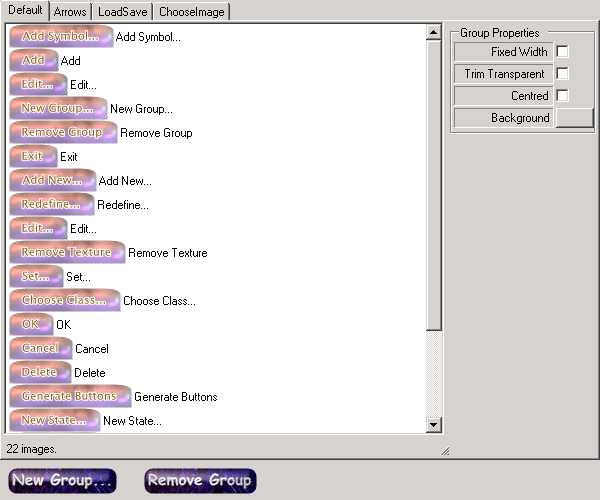
Button It! - Introduction Button It! - Button States and Bindings Button It! - Button Groups Button It! - Defining Styles Button It! - Layout Button It! - Registration Button It! - Saving Images Button It! - Style Presets Button It! - Support Button It! - Swapping Presets Button It! - Symbol Selector Button It! - Variations Button GroupsA button group, as you might have guessed, defines a group of buttons. For example you might have a group of buttons contain the text 'Home', 'About Us', 'Products', 'Contact Us', and 'Further Information'. Creating and Removing GroupsBy default, a project contains a single button group, named 'Default'. This group cannot be removed. You can add additional groups using the 'New Group' button, or remove them using the 'Remove Group' button. No two groups can have the same name, and there must always be a 'Default' group.
Group PropertiesButton groups have three properties that apply to the group as a whole.
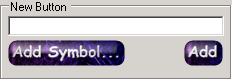
The buttons in each button group can be displayed by selecting the tab corresponding to the group on the 'Basic Style & Settings' tab of the main window. Adding Buttons To a GroupYou can add a button to the currently displayed group by entering the text in the 'New Button' text box and then pressing enter, or clicking the 'Add' button:
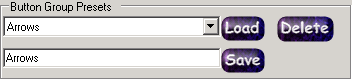
You can also use the 'Add Symbol' button in order to add a button containing a symbol (using the Symbol Selector ) rather than text. Another way to add buttons to a group is to load a button group preset (which will give you the option of replacing the buttons currently in the group, or not). Deleting ButtonsIf you select buttons in the displayed group and press the 'delete' key, those buttons is removed from the set. Alternatively, you can right-click and select the 'delete' option from the menu. Changing the Properties of Buttons in a GroupYou can alter certain properties for each button in a group; right click on the button you wish to change, and select 'properties'. This allows you to change properties such as the filename for the image, the HTML filename corresponding to the button, and the page title for the HTML. You can also change the font for individual buttons if required. Button Group PresetsIf you have a button group that you are likely to use on a regular basis, you can save the group as a 'preset'. To save a group in this manner, type in the name for the button set into the 'Button Group Presets' text box, and press 'Save'. To load a previously saved button set, select it from the 'Button Group Presets' drop-down list, and press 'Load' (the group will be loaded into the currently selected group in your project; if there already buttons in that group, you will be asked if you want to replace them or not).
|
 |
|||||||
 |
 |
 |
 |
 |
 |
 |
|
|
 |
 |
|
||||||
 |
|
|||||||